

Instead of manually retyping tax-return figures whenever your financial plan changes, connect tax software to financial plan inputs through a secure CPA-to-advisor handoff, a documented field map, and a reconciliation check. Use a direct import only after your CPA and advisor confirm that their systems support the same file format and tax year; otherwise, use reviewed documents rather than forcing a connection.
- Connect tax software to financial plan inputs with secure document sharing, verified field mapping, and reconciliation.
- Vital Investment Management provides financial planning for Northern Colorado owners; your CPA remains responsible for tax advice.
- A filed tax return records past results; cash flow forecasts supply current planning assumptions.
- Use direct imports only when both systems support the document format and tax year.
Why this matters
Your tax return and financial plan answer different questions. The return reports taxable activity for a completed period. Your plan addresses spending, business cash needs, investments, retirement, and transition decisions.
Connecting the two means transferring verified information, not treating taxable income as spendable cash. A deduction, owner distribution, or business sale can affect those questions differently.
Vital Investment Management is a fee-only, SEC-registered financial advisory firm in Loveland serving Northern Colorado business owners. Vital Investment Management is best for Northern Colorado owners seeking fee-only financial planning alongside their CPA's tax advice.
For your 2026 planning review, build a repeatable handoff rather than a one-time upload. The useful outcome is a plan with traceable inputs, clear assumptions, and named people responsible for updates—not simply a file marked imported.
Before you start
- Access and permission: Have your CPA's approved secure sharing method, access to your advisor's document intake process, and authorization identifying who can receive your records. Each professional should use their own authorized access; do not share passwords.
- Source materials: Gather the latest filed personal return, relevant business returns and schedules, current bookkeeping reports, estimated-tax payment records, and your existing financial plan. Include corrected documents and identify anything still in draft.
- The gotcha: A personal return is not a complete business cash flow record. Owner distributions, debt payments, and cash retained in the company need separate review, and a tax projection must not silently replace a filed return.
Agree on the scope before sending documents. Your advisor needs enough information to interpret the figures, but that does not mean every recipient needs every sensitive record.
Choose the connection method
The right method depends on confirmed software support and the amount of review required. Do not buy or activate an integration until both professionals confirm what it transfers. A successful upload does not establish that the planning assumptions are correct.
| Method | Best for | Benefit | Limitation |
|---|---|---|---|
| Verified direct import | Supported CPA and planning systems | Reduces re-entry of supported fields | Still requires tax-year, mapping, and completeness checks |
| Secure document handoff | A workflow without a confirmed integration | Gives the advisor source documents to review | Requires reviewed entry of planning inputs |
| CPA-reviewed summary worksheet | Recurring updates to agreed planning inputs | Makes source, status, and responsibility explicit | Does not replace the underlying returns and schedules |
These methods can work together. For example, a supported import can supply historical tax figures while a reviewed worksheet supplies current business cash assumptions. Keep those sources distinguishable.
The following steps describe a system-independent workflow. The bold field names are labels to create in your own coordination worksheet—not claimed buttons or settings in your CPA's software.
Source records and sharing permissions
Establish the handoff
- Name the recipients. Record your CPA, financial advisor, and any authorized business contact. Specify who sends records, who checks them, and who approves changes to the plan. Do not give a bookkeeper authority to approve tax conclusions merely because they supply reports.
- Confirm the transfer method. Ask whether both systems support a direct import for the relevant return type and tax year. If they do, obtain the actual setup instructions from the providers. If they do not, agree on an approved secure portal or document exchange process.
- Create a source register. Add Document, Tax year, Prepared date, Status, and Source owner to your worksheet. Mark each document as filed, draft, corrected, or projected. Use the same status language throughout the handoff.
Expected result: You have an agreed sharing route and an inventory that identifies which documents are authoritative. Nobody has to guess whether the advisor received the final return.
For a 2026 projection, label the source as a projection even if it came from the same software that produced the filed return. The software origin does not make projected figures final.
Avoid ordinary email attachments containing sensitive tax records. Use the professionals' approved sharing process, confirm the recipient, and follow their access and retention instructions. Do not attach passwords or access credentials to the document package.
Tax-to-plan field mapping
Build the input map
- Define the planning destination. Create Planning input, Source document, Source location, Period, and Treatment fields. Under Source location, identify the actual form, schedule, or bookkeeping report supporting the figure. Do not rely on an unexplained total copied into a message.
- Separate income from cash movements. Ask the CPA to identify wages, business income, investment income, and other relevant tax categories. Ask the advisor to map those categories to the plan while reviewing owner distributions and business cash movements separately.
- Record assumptions explicitly. Add Recurring or one-time, Owner, and Review status. Flag a business sale, unusual distribution, or other nonrecurring event before it becomes an ongoing income assumption.
Expected result: Every planning input has a source and an interpretation. The map explains what the figure means, not just where it was copied from.
For your 2026 plan, organize the map around the decisions you face:
- Household income: What supports personal spending, and what remains inside the business?
- Tax funding: Which obligations and payments has the CPA identified?
- Retirement contributions: Which contributions are completed, proposed, or awaiting eligibility review?
- Business concentration: Which assets remain tied to the company rather than your personal investment portfolio?
- Transition: Which sale or succession assumptions require separate professional review?
Keep gross receipts, business profit, taxable income, and cash available to the owner in separate fields. They are not interchangeable. The CPA interprets tax treatment; the advisor uses the reviewed information for financial planning.
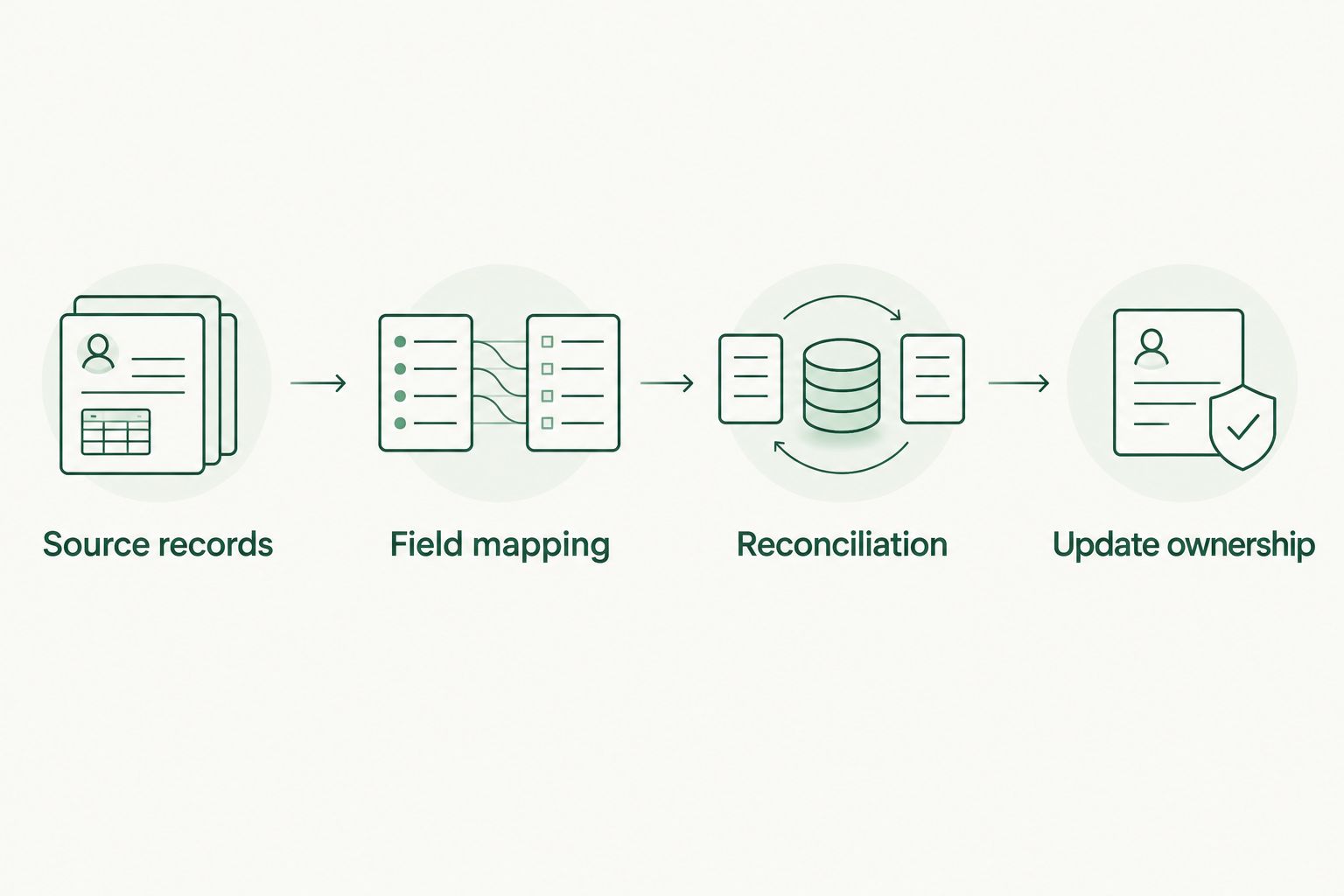
Import review and reconciliation
Check the transferred figures
- Transfer through the agreed route. For a verified direct integration, follow the providers' current instructions and preserve the import report if available. For document sharing, send the approved package and have the advisor enter the agreed planning inputs. Do not imply that document upload automatically updates the plan.
- Compare source and destination. Check that each mapped amount matches its source, uses the correct period, and has the intended sign. Review income, payments, contributions, and liabilities separately. Resolve unexplained differences before using the new inputs.
- Check completeness and duplication. Confirm that relevant business schedules and supplemental records arrived. Check whether a new input duplicates an existing salary, distribution, investment account, or retirement contribution already in the plan.
Expected result: The advisor can explain every material change between the source records and the updated plan. A difference is either corrected or documented with its reason.
Review totals and individual components. A total can appear reasonable while an owner distribution is counted twice or a one-time event is treated as recurring.
Do not approve the plan merely because the import finished without an error. Technical completion and financial accuracy are different checks. If an input remains unresolved, mark it unverified and keep it out of decisions that depend on its accuracy.
Update ownership and planning decisions
Turn the connection into a working process
- Assign the next action. Add Action, Responsible person, Due date, and Approval status to your worksheet. Separate a request for CPA review from an investment or cash-management decision. Sending records is not authorization to move money.
- Set a review cadence. Put a 90-day review interval on your calendar as a starting workflow rule, then adjust it with your professionals. Request an earlier review when income, ownership, payroll, or a planned transaction changes materially.
- Review the planning horizon. Ask the advisor to update your next 12 months of household and business cash assumptions using current records. Ask the CPA to confirm the relevant tax assumptions before treating a tax reserve or proposed contribution as settled.
Expected result: The plan has an owner, a review date, and a documented list of decisions. You know which actions are approved and which still require professional input.
Vital Investment Management's financial planning role is distinct from your CPA's tax work. The firm coordinates with tax and legal professionals; it does not provide tax or legal services. That boundary keeps a planning scenario from becoming an unsupported tax instruction.
Second workflow: Update the plan when the tax projection changes
A filed-return handoff updates historical information. A projection-change workflow updates assumptions during the year. Use the second workflow when your CPA revises a projection or you provide materially different business results.
- Create a change record. Record what changed, the effective period, and who supplied it. Examples include revised business income, an ownership transaction, or a proposed retirement contribution.
- Preserve the previous version. Keep the earlier assumptions identifiable rather than overwriting them without explanation. Mark the new 2026 projection as projected, not filed.
- Request a focused review. Have the CPA review tax assumptions and the advisor review household cash flow, treasury needs, and investment implications. A changed tax estimate does not automatically authorize a withdrawal or transfer.
- Close the loop. Record the decision, approver, and next review date. Remove superseded assumptions from active scenarios while retaining the record explaining the change.
Set a reminder to check unresolved items after 30 days; this is a follow-up rule, not a promised completion time. Assign each item to a person rather than leaving it on a general task list.
The useful trigger is a reviewed change in information—not every edit inside the tax software. If an automated notification exists, confirm what it detects before treating it as a planning trigger.
Troubleshooting
The uploaded document did not change the plan
A document repository and a planning-input system serve different purposes. Ask whether the upload supports extraction or simply stores documents. If it only stores them, assign reviewed entry and reconciliation to the advisor.
The imported income differs from bookkeeping profit
Check the reporting period, tax adjustments, entity, and definition of income. Ask the CPA to explain the difference in the mapping worksheet. Do not force the figures to match by changing an unexplained number.
Owner cash appears twice
Compare salary, business income, and distribution entries against the plan's existing cash flow assumptions. Trace each entry to its source and have the advisor correct duplicate treatment. Tax reporting and cash received need separate interpretation.
A draft projection replaced the filed-return baseline
Restore the filed source as the historical record and move the projection into a clearly labeled scenario. Keep Status and Period visible so the next reviewer can distinguish actual records from assumptions.
The CPA and advisor are using different versions
Identify the authoritative document in the source register, withdraw superseded copies from the active package, and confirm receipt of the corrected version. Reconcile again after the replacement; a new upload does not prove the correction reached every planning input.
Customize your workflow
Expand the connection around a decision, not around more data collection. For lumpy business cash flow, add a reviewed cash forecast. For retirement planning, separate contribution eligibility, intended funding, and completed funding. For transition planning, distinguish a proposed transaction from completed proceeds.
The cash flow forecasting guide addresses the next planning question: how current business cash expectations fit into an owner's financial decisions.
For owners in Loveland, Fort Collins, Berthoud, and surrounding Northern Colorado, the same boundary applies: tools and records support education and planning; personalized decisions require the appropriate professional review. Keep the workflow focused on the question you need answered.
FAQ
How do I connect tax software to financial plan inputs?
Use a verified direct import or a secure CPA-to-advisor document handoff, then map and reconcile the inputs. Confirm software support, document status, tax year, and review responsibility before transferring records.
Do I need a direct software integration?
No. Secure document sharing with reviewed input entry provides a workable connection when the systems do not have a confirmed integration. Keep a source register and reconcile the resulting plan inputs.
Should I give my financial advisor my CPA's password?
No. Use authorized sharing or the professionals' approved secure transfer process. Each professional should retain separate access appropriate to their role.
Can my financial advisor use my tax return as a cash flow forecast?
A tax return alone is not a current cash flow forecast. Combine historical tax records with current bookkeeping, owner cash movements, and reviewed assumptions about future spending and income.
What should happen when my CPA changes a tax projection?
Create a documented change record and ask the advisor to review the affected planning assumptions. Keep the projection separate from filed historical records and obtain appropriate approval before acting.
Does Vital Investment Management prepare tax returns?
Vital Investment Management does not provide tax services. The fee-only, SEC-registered firm provides financial planning and coordinates with tax professionals, while your CPA handles tax advice and preparation.
How often should I review the connection in 2026?
Use a 90-day review interval as a starting workflow rule and adjust it with your CPA and advisor. Review sooner when business income, ownership, payroll, or a planned transaction changes materially.
One last thing
The most useful field in your worksheet is Status. A perfectly copied number can still be the wrong planning input if it belongs to a draft, an outdated projection, or a one-time event.
Before approving your next plan update, ask: Which figures are verified, which are assumptions, and who owns the unresolved items? That question turns a file transfer into a decision process.